Getting the footage across
From the phone to the Final Cut Pro timeline
Final Cut Pro will show your phone under CAMERAS and then spin forever. That is expected, it is not a fault in the phone or the app, and it is not the route. Copy the file to the Mac first. The whole business takes about three minutes, and one setting on the phone decides whether the file that arrives is the file you shot.
Verified 5 September 2026 · Pixel 10, Android 16 · Final Cut Pro on macOS 26
- On the phone, leave Convert videos to AVC switched off.
- Copy the
.movfromMovies/PrimeCamto a folder on the Mac. - In Final Cut Pro press
⌘Iand import from that folder — not from the phone — with optimised media and proxies switched off.
Everything below is the same three steps with the reasons attached, plus what to check afterwards and what to do when a clip looks wrong.
First · the one that costs you the shot
Leave “Convert videos to AVC” off
Switched on, Android re-encodes HEVC video to AVC while it copies, so that software which cannot read HEVC can still open it. The Mac then receives a re-encoded 8-bit copy: not 10-bit, not Rec. 2020 HLG, and not the file your phone is holding.
It is off by default and it should stay off. Nothing on the Mac can tell you it happened — the copy plays, it just is not the take.
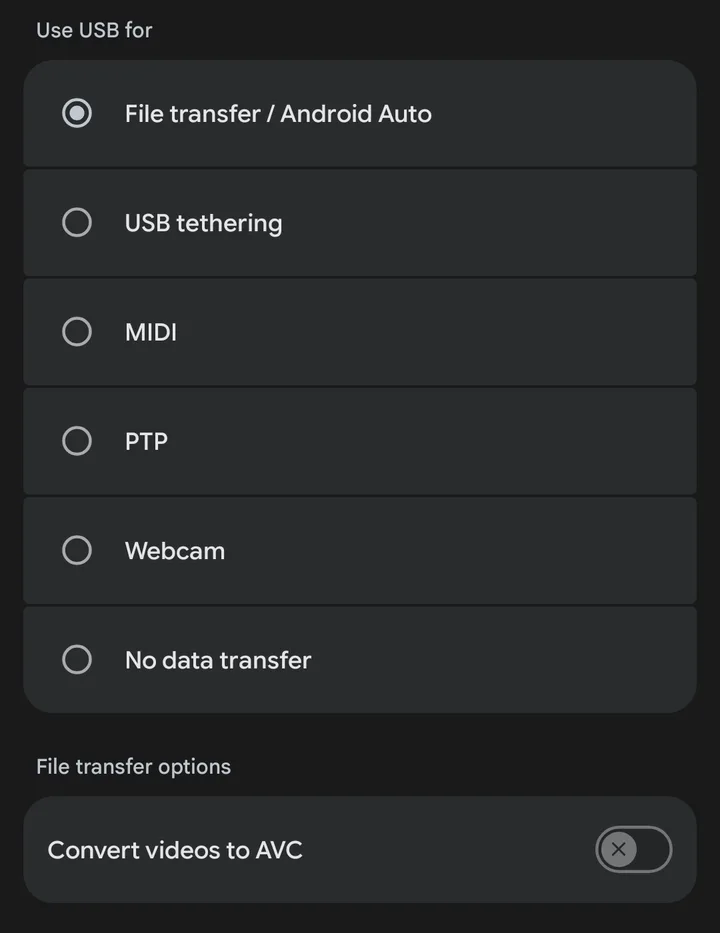
This matters more for PrimeCam than for most cameras, because the thing that makes a
PrimeCam clip open cleanly in Final Cut Pro is the encoding: HEVC Main 10 in a
.mov file, carrying the hvc1 sample entry and a full Rec. 2020 HLG
colour tag. Re-encode it to AVC in transit and every one of those properties is gone before
Final Cut Pro ever sees the file.
The setting only applies to video leaving the phone over the cable, so it costs you nothing to leave off. Check it once and you never have to think about it again.
Second · why the obvious route fails
Final Cut Pro cannot import from an Android phone
Plug the phone in and Final Cut Pro's Media Import window lists it under
CAMERAS, exactly where a camera would be. Select it and you get a spinner,
the status line Loading clips, and no end to it. There is no error and no
timeout.
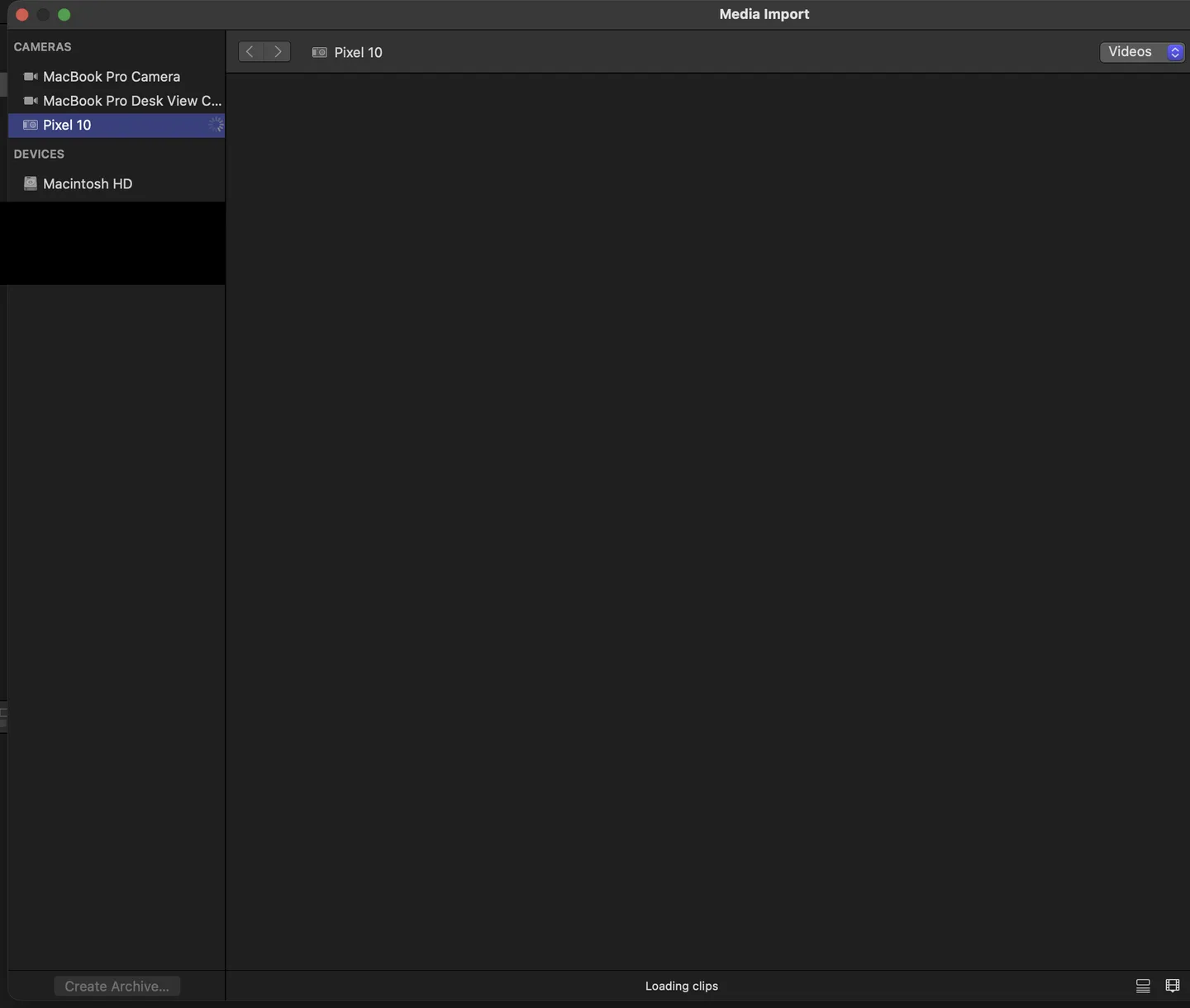
The reason is structural rather than a bug worth reporting. macOS does not mount an Android phone as a disk the way it mounts a card reader; the phone speaks MTP, and the camera-import path Final Cut Pro offers is not a route Apple documents or Google supports for Android devices. So the window is offering you something that cannot finish.
The supported route is the one Apple documents for importing from your Mac or a storage device: get the file onto the Mac, then import it from there. It is also faster, and it leaves you holding the original.
Third · get the file across
Copy the clip to the Mac
PrimeCam writes takes to Movies/PrimeCam in the phone's shared storage, under a
name that sorts chronologically — PrimeCam_20260905_050402_143_24mm_24_000.mov is
the take from 05:04:02.143 on 5 September 2026, shot on the 24 mm lens at 24 fps.
Each take also has a small JSON sidecar in Documents/PrimeCam recording the lens,
the rate, the stabilisation mode and the crop it cost.
Any route that carries the file across unchanged will do. Three of them, easiest first — you only need one.
OpenMTP
Google stopped distributing Android File Transfer in May 2024, so it is no longer the answer. OpenMTP is free, open source, and does the same job in a window that looks like the Finder.
- Open it with the phone connected and unlocked.
Internal storage→Movies→PrimeCam.- Drag the
.movto a folder on the Mac.
A USB-C drive
The phone reads USB sticks. If you would rather not install anything on the Mac at all, the drive is the whole bridge.
- Plug the stick into the phone, open Files, and copy the take from
Movies/PrimeCamonto it. - Move the stick to the Mac.
- Format it exFAT. FAT32 refuses any file over 4 GB, which a 4K take passes in about seven minutes.
Send it to yourself
Drive, Dropbox, WeTransfer, an AirDrop-style app — anything you already use will carry
a .mov.
- Share the take from the phone's Files app.
- Turn off any optimise, compress or save data option the service offers. That is the AVC trap wearing a different hat.
- Slowest of the three by a distance at 600 MB a minute of footage.
Whichever you pick, the rule is the same: nothing along the way may re-encode the video. Get that right and every route produces an identical file; get it wrong and no amount of care in Final Cut Pro will bring the original back.
Budget the space before you start. A 4K take runs about 600 MB per minute of footage, and over a cable that copies in roughly twenty seconds — a 21-second take measured 7.1 seconds here. Ten minutes of rushes is six gigabytes, so a shoot fills a laptop faster than most people expect.
Fourth · the import itself
Import from the folder, not from the phone
In Final Cut Pro press ⌘I, or File → Import → Media. In the
window that opens, choose the folder you just copied into — it will be under
Macintosh HD or in your favourites on the left. Do not choose the phone under
CAMERAS, which is the window's own invitation to repeat the problem above.
Then, on the right-hand side of the same window:
| Setting | Set to | Why |
|---|---|---|
| Create optimised media | Off | This makes a large ProRes duplicate of every clip. The point of this file is that Final Cut Pro does not need one. |
| Create proxy media | Off | Same, in a smaller size. Turn it on later if your machine struggles with 4K — but turn it on knowing you chose it. |
| Balance color | Off | An automatic colour pass on HLG footage on the way in makes it much harder to tell whether the colour arrived correctly. |
| Find people, Visual Search, Transcribe | Off | Analysis passes. They cost minutes per clip and none of them affect the picture. |
| Files | Your call | Copy to library keeps everything in one bundle; Leave files in place keeps your folder as the original. Neither one alters the video. |
The library's colour space
PrimeCam records Rec. 2020 HLG, and Final Cut Pro has a library colour space that matches it exactly: Wide Gamut HDR — Rec. 2020 HLG. If your library is set to Automatic, importing the first HLG clip prompts Final Cut Pro with “Would you like to switch the library to HDR?” — answer Switch to HDR and it sets Rec. 2020 HLG for you. You can also set it deliberately: select the library in the sidebar, open the Inspector, and use Modify under Colour Processing.
Getting this wrong is the usual cause of footage that looks washed out or oddly grey on the timeline. It is a library setting, not damage to the clip — change it and the picture comes back.
Fifth · confirm it arrived intact
Check the clip, once
Select the clip in the browser and open the Info inspector
(⌘4). The block at the top of the panel is the whole answer: frame size, frame
rate, audio, and the colour space Final Cut Pro decided the clip is in. No conversion dialog
should have appeared at any point along the way.
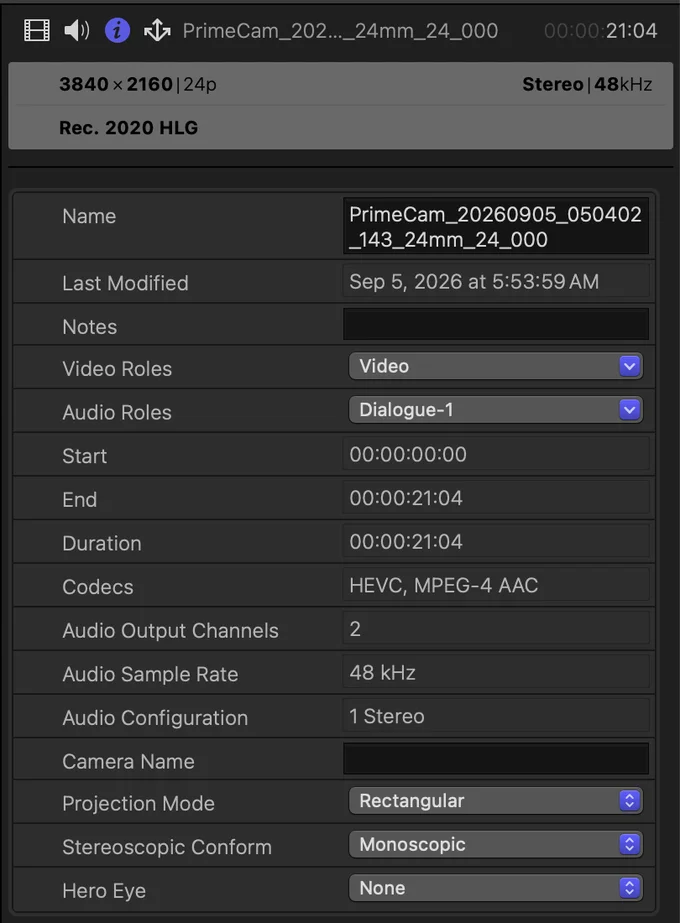
That panel is also how you catch a mangled transfer, which is the one thing worth checking before you start cutting. Codecs must say HEVC, and the line under the frame size must say Rec. 2020 HLG. If it reads H.264, or Rec. 709, the file was re-encoded somewhere between the phone and the folder — and the first thing to suspect is the AVC setting at the top of this page. The take on the phone is untouched, so you lose nothing but the copy.
When it looks wrong
Four things that actually go wrong
| What you see | What it is | What to do |
|---|---|---|
| The phone spins under CAMERAS forever | Not a supported import route | Close the Media Import window and copy the file across first. Step three. |
| The picture is flat, grey, washed out | Library colour space, almost always | Set the library to Wide Gamut HDR — Rec. 2020 HLG. Step four. |
| The clip is H.264, or 8-bit, or Rec. 709 | It was re-encoded on the way off the phone | Switch Convert videos to AVC off and copy it again. Step one. The take on the phone is unharmed. |
| Playback stutters on the timeline | 4K HEVC decoding, not the file | This is the one case where proxies are the right answer. Make them deliberately, after import. |
Questions
Frequently asked
- Do I need to convert Android footage before Final Cut Pro will take it?
- Not for a file PrimeCam wrote. Most advice you will find says otherwise, and for a lot of Android camera apps it is fair advice — Apple's tools are particular about the HEVC sample entry and about colour tagging, and plenty of files get both wrong. PrimeCam's entire output stage exists to get them right, so the original imports as it is. Footage from other apps is a separate question — check what the Inspector says about one of those clips before you buy a converter on a stranger's say-so.
- Why can PrimeCam not just upload the take for me?
- Because it has no network access at all. The app ships without Android's
INTERNETpermission, so the operating system refuses it a connection rather than trusting it not to open one — which is the point, and it is the reason the file has to leave the phone by a route you pick. Any route that delivers it unaltered is fine. - Can I import the JSON sidecar into Final Cut Pro?
- No — Final Cut Pro has nothing to do with it. It is there for you and for anything you write yourself: it records which lens the take used, the frame rate, the stabilisation mode and how much of the frame that mode cost. Keep it next to the clip and it will still make sense in a year.
- Can I delete the take off the phone once it is copied?
- Once you have played it on the Mac, yes. Play it first — a copy that was interrupted halfway still looks like a file in the Finder, and its size is the only thing that gives it away. The Inspector reading above is a better check than the file size.
- Which phones has this been tested on?
- PrimeCam has been tested on the Pixel 10 and nothing else, which makes every other handset untested rather than unsupported. The transfer procedure on this page is ordinary Android and ordinary macOS, so it should hold anywhere; the “Convert videos to AVC” toggle is a Pixel presentation of a standard Android feature and may sit elsewhere in another manufacturer's settings.
Related
If you want the reasoning
The homepage explains what the file is and why it is that shape —
hvc1 against hev1, HLG against everything else, and why the app
ships with no network permission at all. There is more of the same in
the writing.
If something here is wrong, or your phone does this differently, we would genuinely like to know: hello@primecam.app.